Step 3: Creating the List Overlap Measure
Creating Q3_IM_AC_select
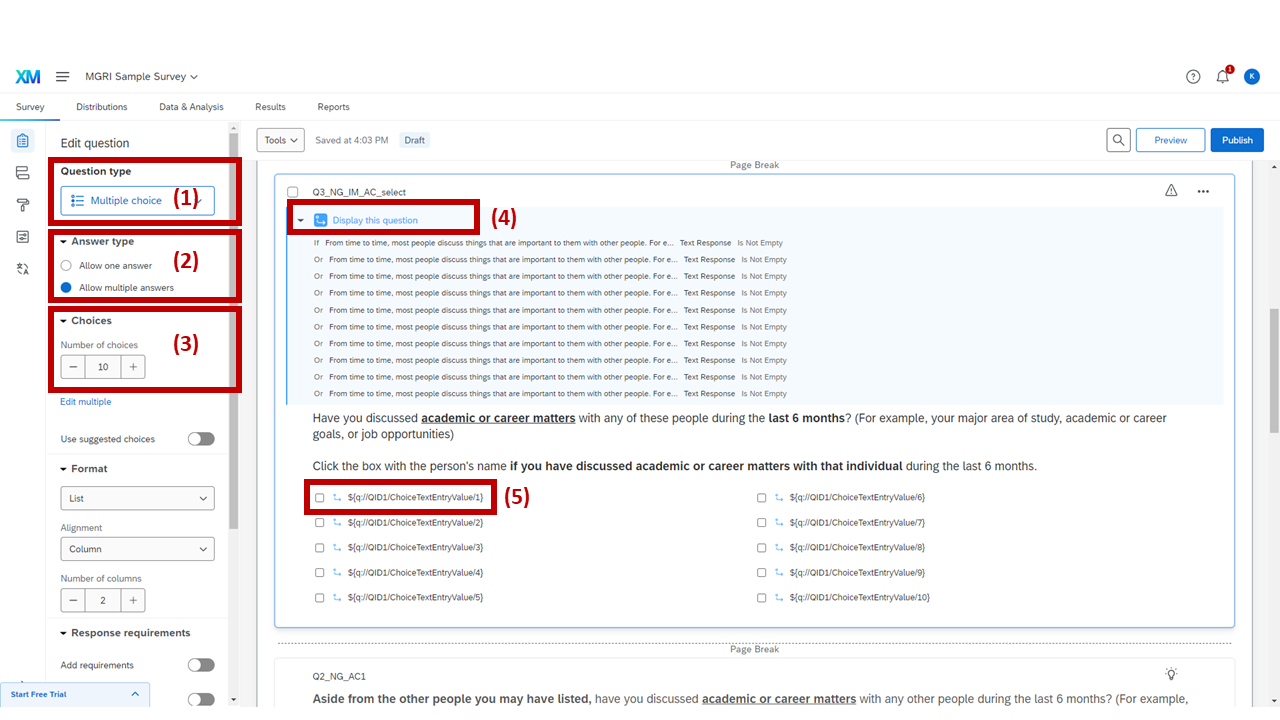
List overlap measure question (Q3_IM_AC_select) overview
This question shows names listed in the IM generator and asks respondents to select the names of those who they would also list in AC.
Create a question between the IM generator and the AC generator questions, and set the question type as "Multiple Choice."
Click "Allow multiple answers."
Set the number of choices to 10.
This is because the number of available fields in the IM generator was 10. Match the number of choices with the number of fields in the name generator you're referencing.
Set up question display logic (see below).
This logic lets respondents who didn't list any names in the IM generator skip this question.
Insert choice text and set up choice display logic (see below).
This logic lets respondents see the names they listed in the IM generator.
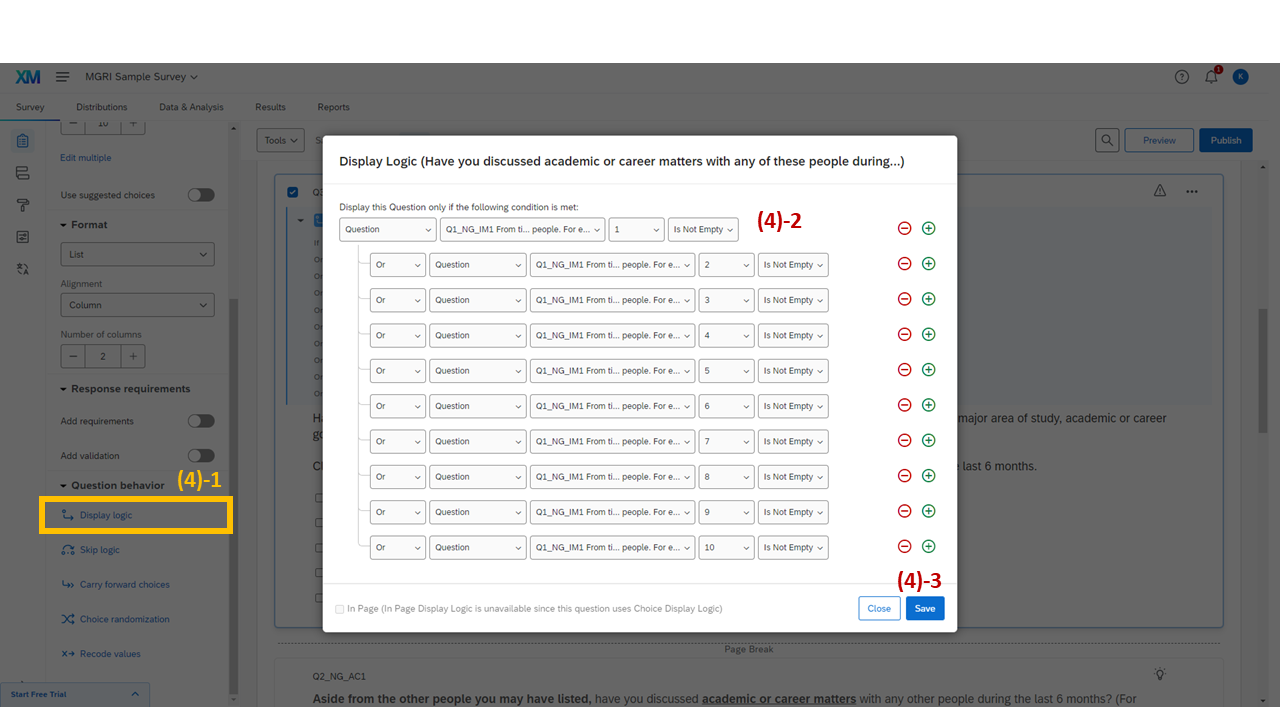
Setting up question display logic for Q3_IM_AC_select
Setting Up Question Display Logic — Step (4)
Click "Display logic" on the left.
Set up the display logic with the following condition:
| Logic | Type | Name | Field Name | Condition Type |
|---|---|---|---|---|
| Or | Question | Q1_NG_IM1 |
1, 2, 3, … K | Is Not Empty |
K is the number of fields available in the IM generator. Because there were 10 fields available in the IM generator in this sample survey, I made 10 conditions here, from 1 to 10. This logic means this question will be shown only if a respondent fills out any of the fields available in the IM generator. Respondents who do not list any names in the IM generator will not see this question.
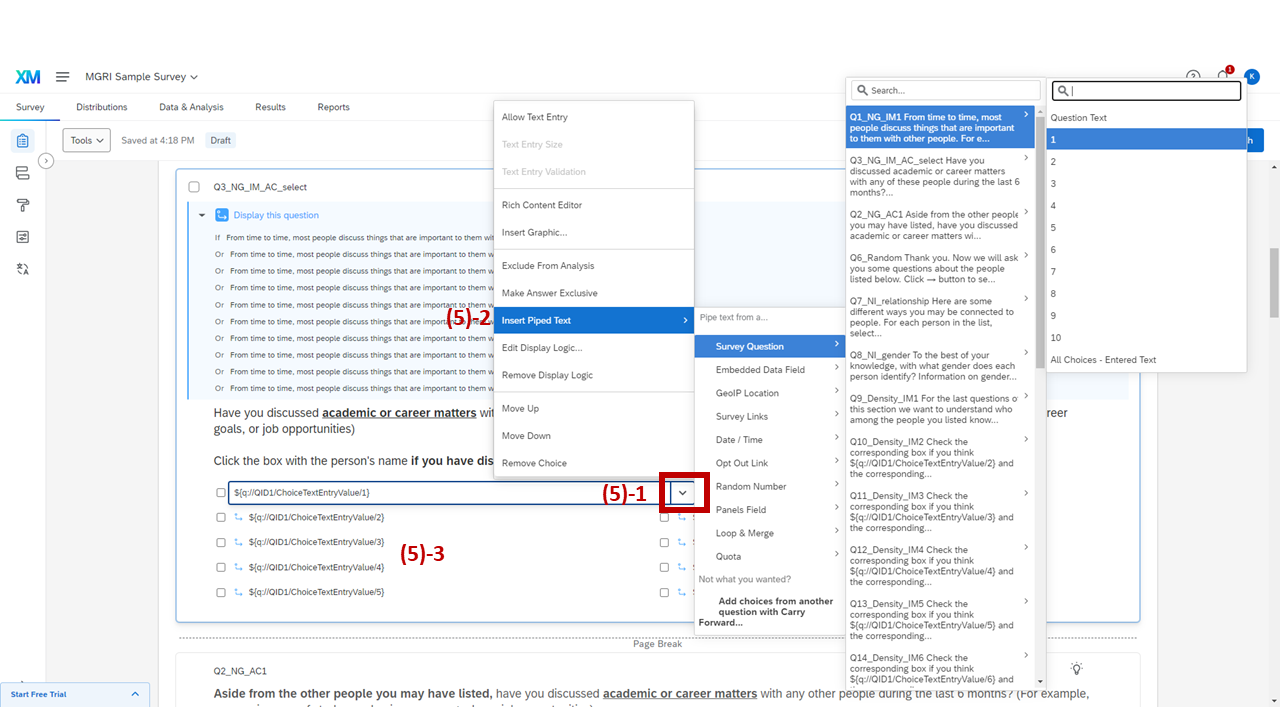
Inserting piped text into choice options
Inserting Choice Text (Piped Text) and Setting Up Choice Display Logic — Step (5)
Click the downward arrow button (highlighted).
Click "Insert Piped Text" > "Survey Question" > the IM generator question (Q1_NG_IM1) > and each form field of the generator.
This will fill the choice with a script that looks like this: ${q://QID1/ChoiceTextEntryValue/1}. This script retrieves the values that were provided by respondents in the previous questions. QID means the Qualtrics question ID. Because the IM generator question's question ID was 1, it should be "QID1." ChoiceTextEntryValue means the text value provided by respondents (in QID1). 1 means the location of the field where the value was provided.
Fill out other choice options.
The choices for this question should be:
${q://QID1/ChoiceTextEntryValue/1}
${q://QID1/ChoiceTextEntryValue/2}
...
${q://QID1/ChoiceTextEntryValue/10}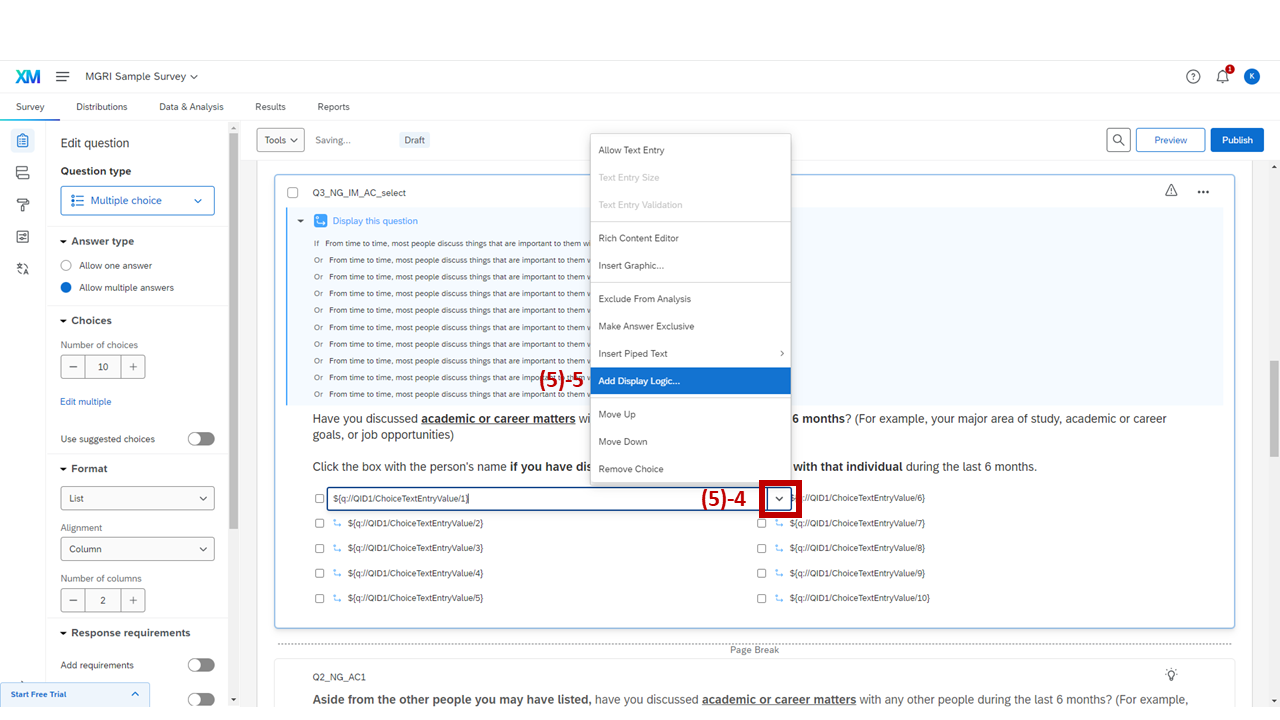
Opening choice display logic via the downward arrow button
Click the downward arrow button (highlighted).
Click "Add Display Logic…"
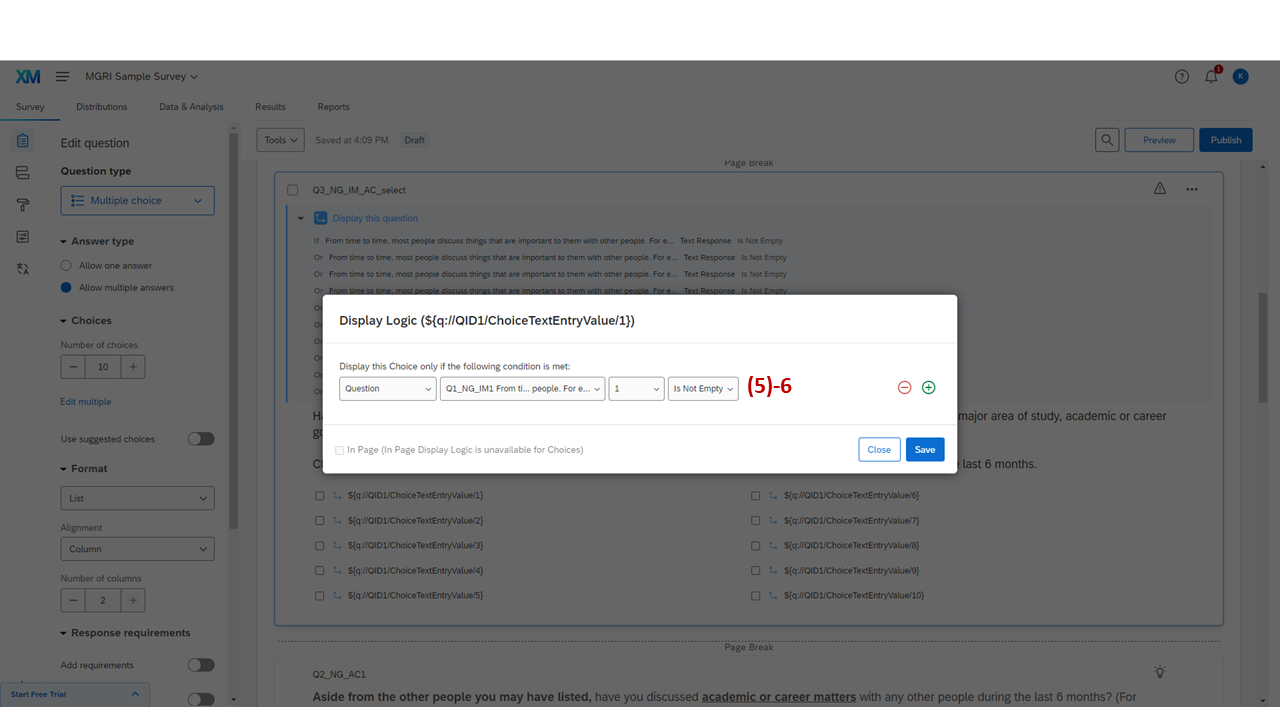
Choice display logic: show choice only when the corresponding IM field is not empty
Set the choice display logic to be: "IM Generator Question field (box) K Is Not Empty."
K should match the field location identified in the piped text in each choice option (${q://QID1/ChoiceTextEntryValue/K}). Set up choice display logic for all choices in the question.
Now we have completed the name generators.