Step 7: Creating Network Density Questions
Q9_Density_IM1 … Q27_Density_AC9
Finally, we are going to create density questions (or alter-alter tie questions). Here, each question will ask respondents if alter A knows/hangs out/talks to other alters listed in the sample list (alter B, C, D…) independently of them.
In order to do this, we need to make questions that apply to all possible alters listed, and set the question display logic so respondents see questions about alters sampled in the sample list.
To make this happen, we have to make (K-1) questions in the density block, where K is the total number of available fields in the name generators. Since we have a total of 20 available fields in this sample survey, the number of questions should be 19.
In summary, each question in this block should:
- Have one reference alter (alter N). Each "alter N" should reference one each field from the first available field (IM field 1 in this sample survey) to the second to last available field (AC field 9).
- Have a list of all other alters listed after the reference alter.
- Embed question display logic so the question is shown to respondents only when the reference alter is displayed in the sample list.
- Embed choice display logic so alters are shown to respondents only when the alters are displayed in the sample list.
The figure below shows the conditions described above when there are four fields available in one name generator.
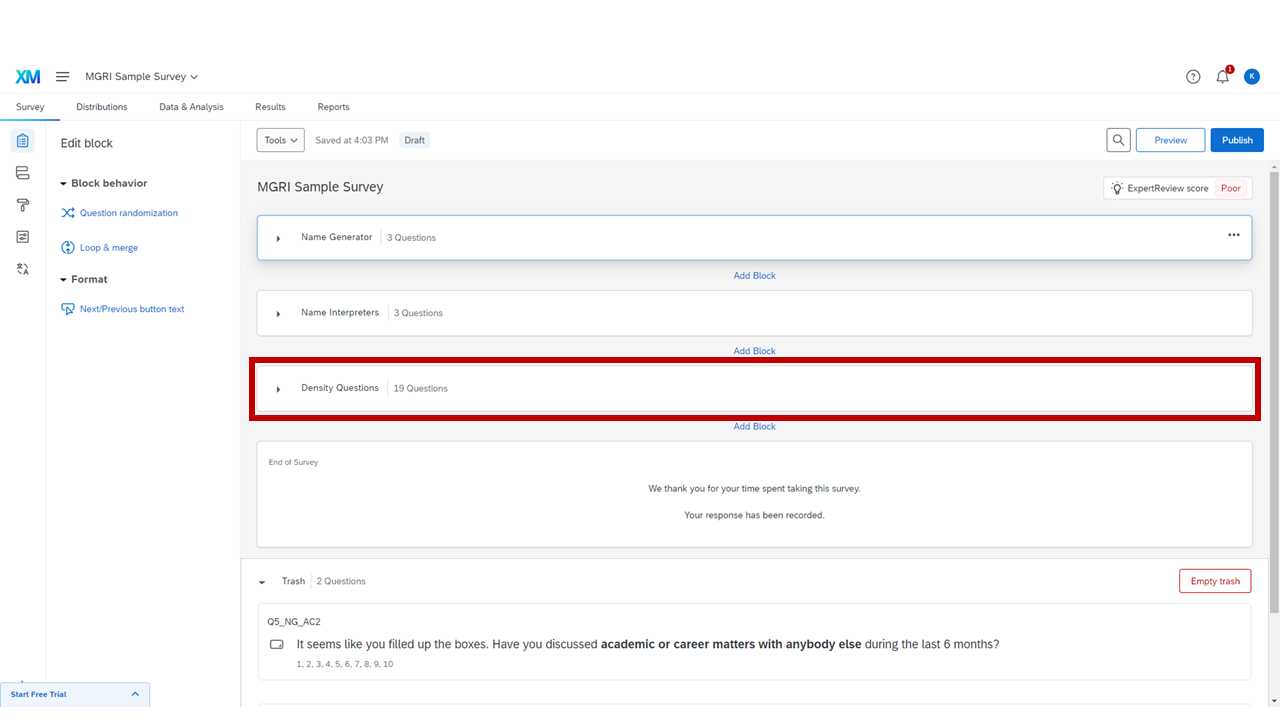
Diagram: Density question structure for a generator with 4 available fields
Building the First Density Question
Create a question in the "Density Questions" block and set up the question type to be "Matrix table."
Set up the number of statements to be equal to the number of all available fields in the name generators.
Set up the number of scale points to be 1. This scale point is going to be the reference alter.
Insert the piped text of the referenced alter (e.g., ${q://QID1/ChoiceTextEntryValue/1}).
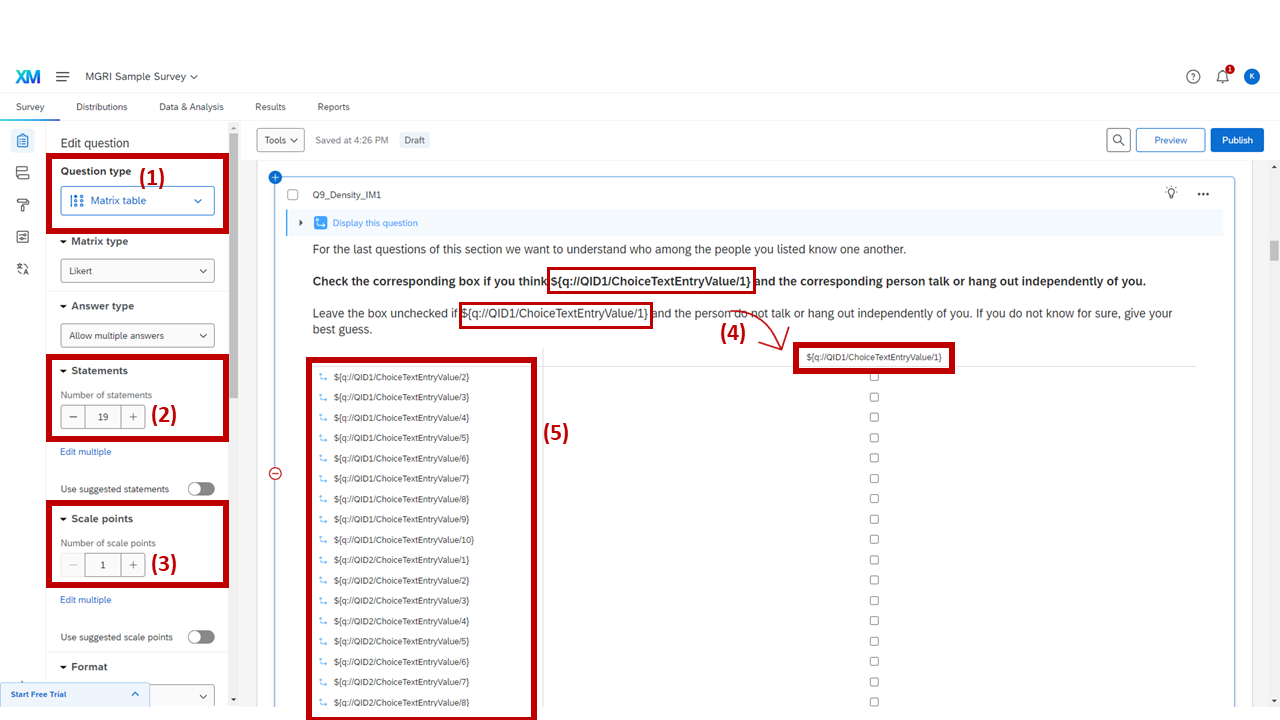
Question display logic for the first density question
Here, we are going to set up question display logic so the question shows only (A) when the reference alter is sampled in the randomizer question, and (B) when there is more than one alter in the name list (it would be strange to see density questions if a respondent only wrote one name!).
Insert choice text to each available field in the name generator (See Step 3-(5) or Step 5-(3)-1) and set up the choice display logic (See Step 6-(5) for directions or below).
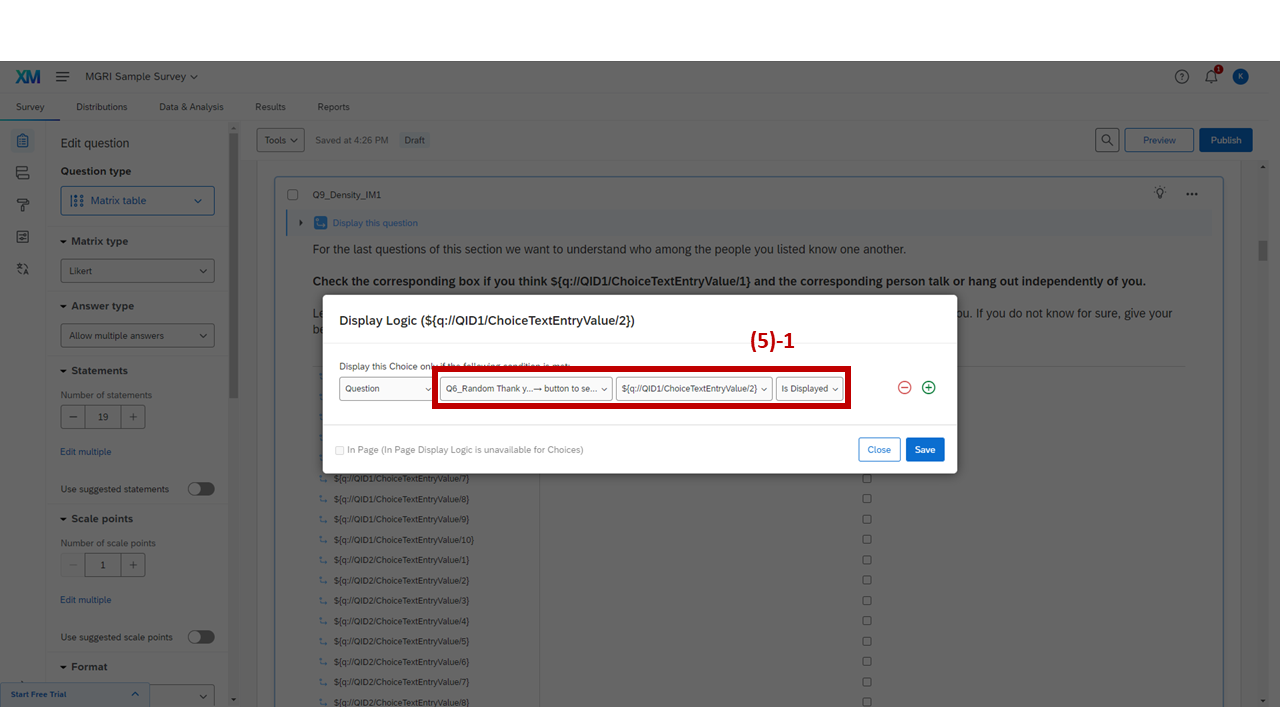
Detailed display logic for the density question using two logic sets
Click "Display logic" on the left.
Add the display logic as follows. (See the sample Qualtrics survey to see all listed conditions.)
A. Set up the first condition to be: Randomizer question (Q6_Random) field K (the referenced alter) "Is Displayed"
B. Add another logic, and click "Move to a new Logic Set."
C. Add a second set of logic. This should look: Randomizer question (Q6_Random) field K (each of other fields) "Is Displayed." Add logic to as many choices as are available in the question.
Copying and Editing Subsequent Density Questions
After the first density question is made, we can just copy and edit the rest.
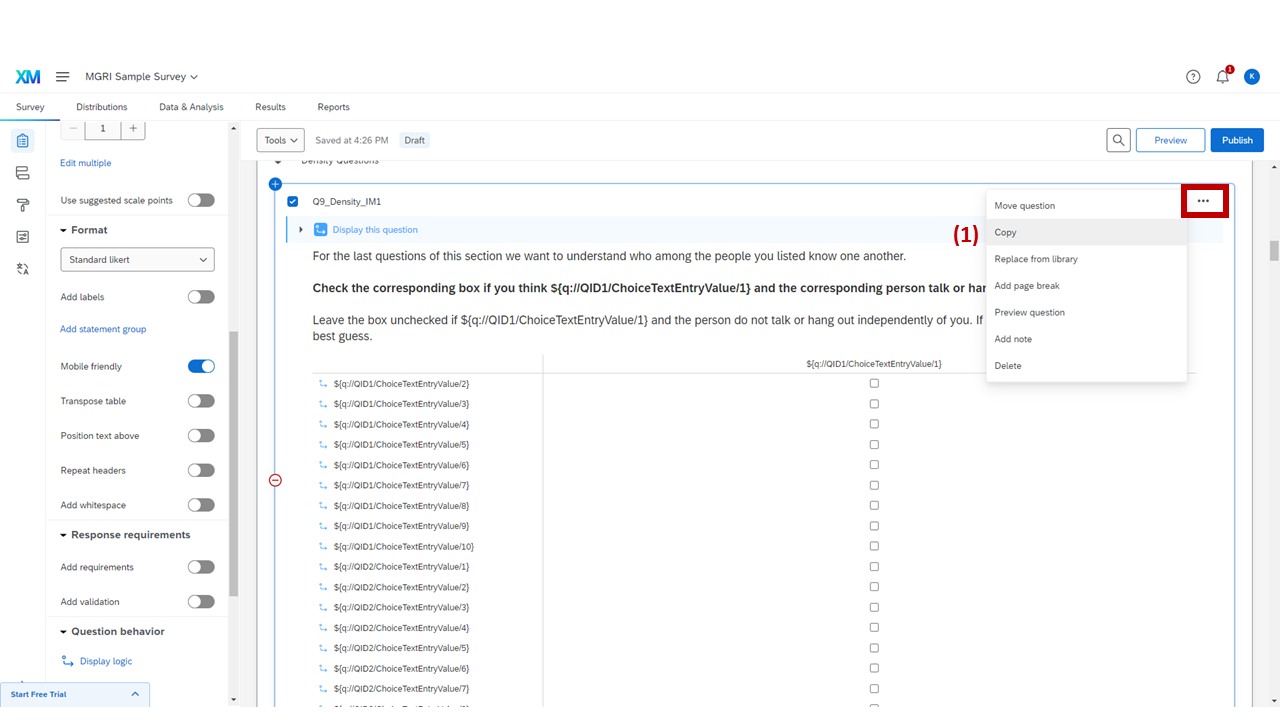
Copying the first density question using the "…" menu
Click the "…" button on the right corner of the question and click "Copy."
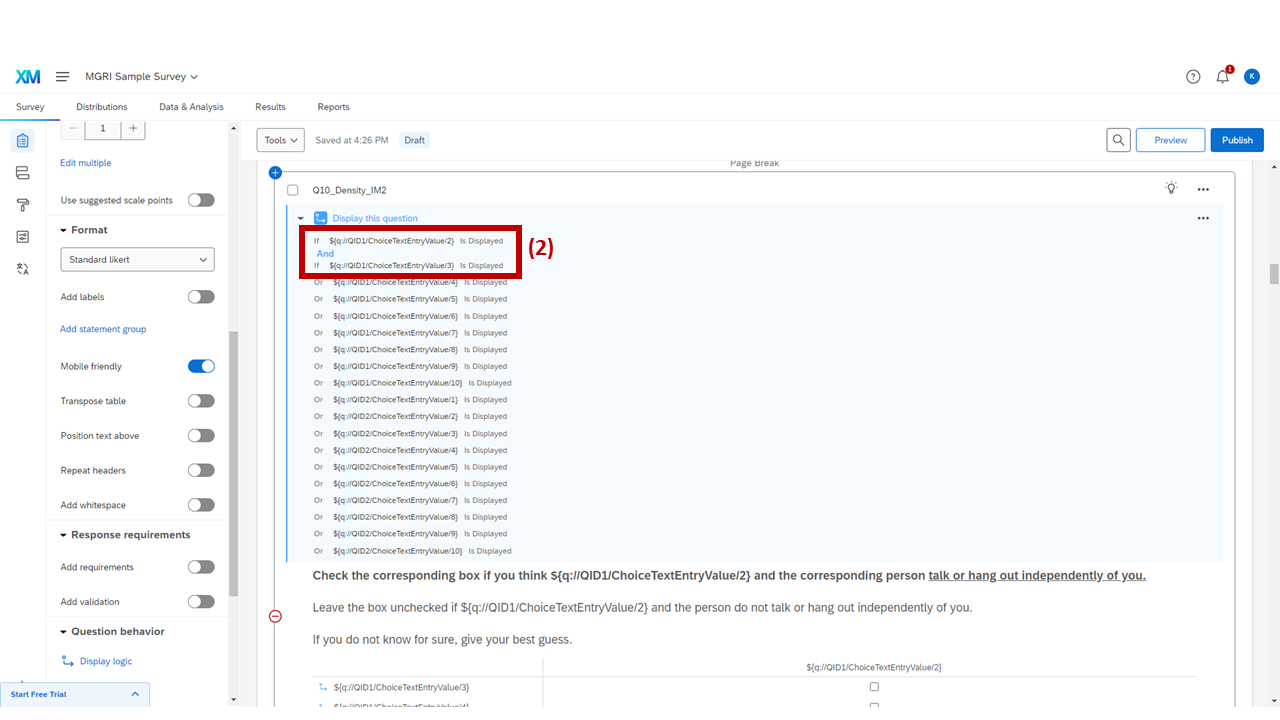
Editing display logic for the second density question to reference field 2
Edit the question display logic.
For the second density question, the referred alter should be field 2 of the IM generator (e.g., ${q://QID1/ChoiceTextEntryValue/2}). Delete ${q://QID1/ChoiceTextEntryValue/2} in the second set of logic (i.e., after "AND").
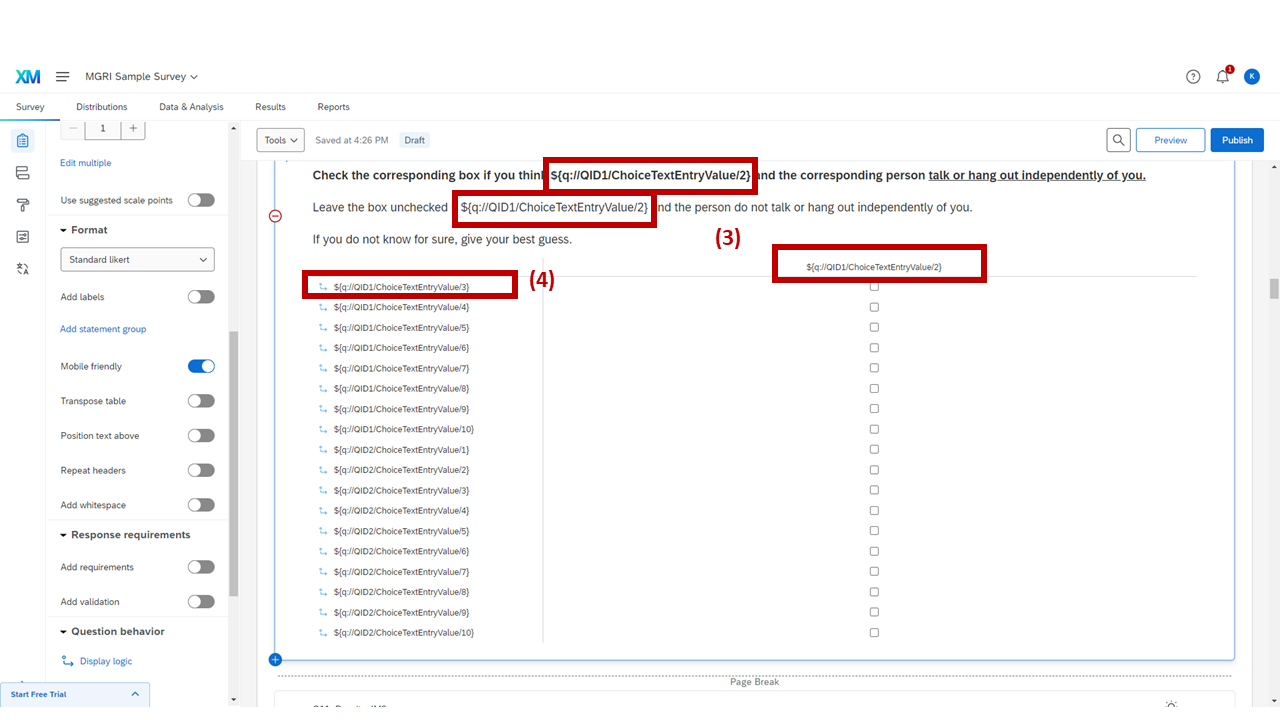
Updating the prompt and scale point to reference field 2 of the IM generator
Make sure the prompt and the scale point is referring to field 2 of the IM generator (e.g., ${q://QID1/ChoiceTextEntryValue/2}).
Delete ${q://QID1/ChoiceTextEntryValue/2} from the choice options.
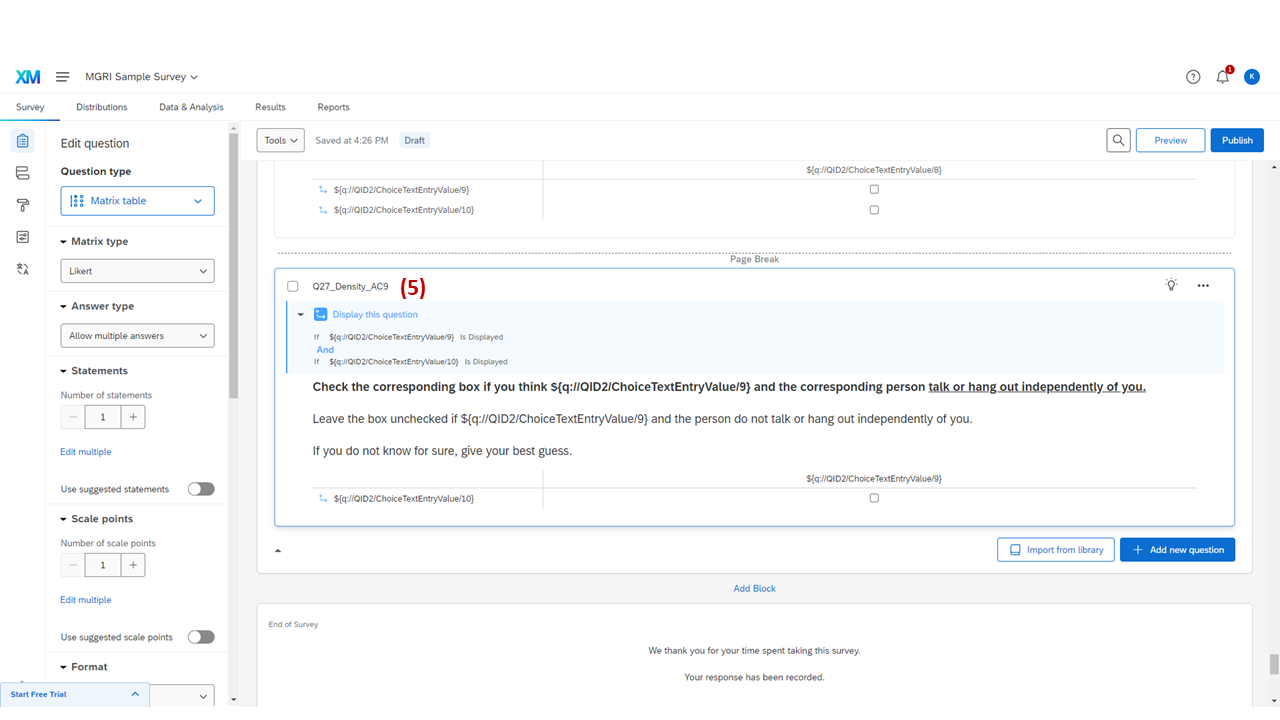
The last density question has only one choice remaining