Step 5: Creating a Random Subset of the Listed Names ("Sample List," Q6_Random)
Next, we are going to create a function that randomly samples names from the name lists and presents the sample list to respondents. In the following steps, I will refer to this as a "sample list" or by its variable name, Q6_Random.
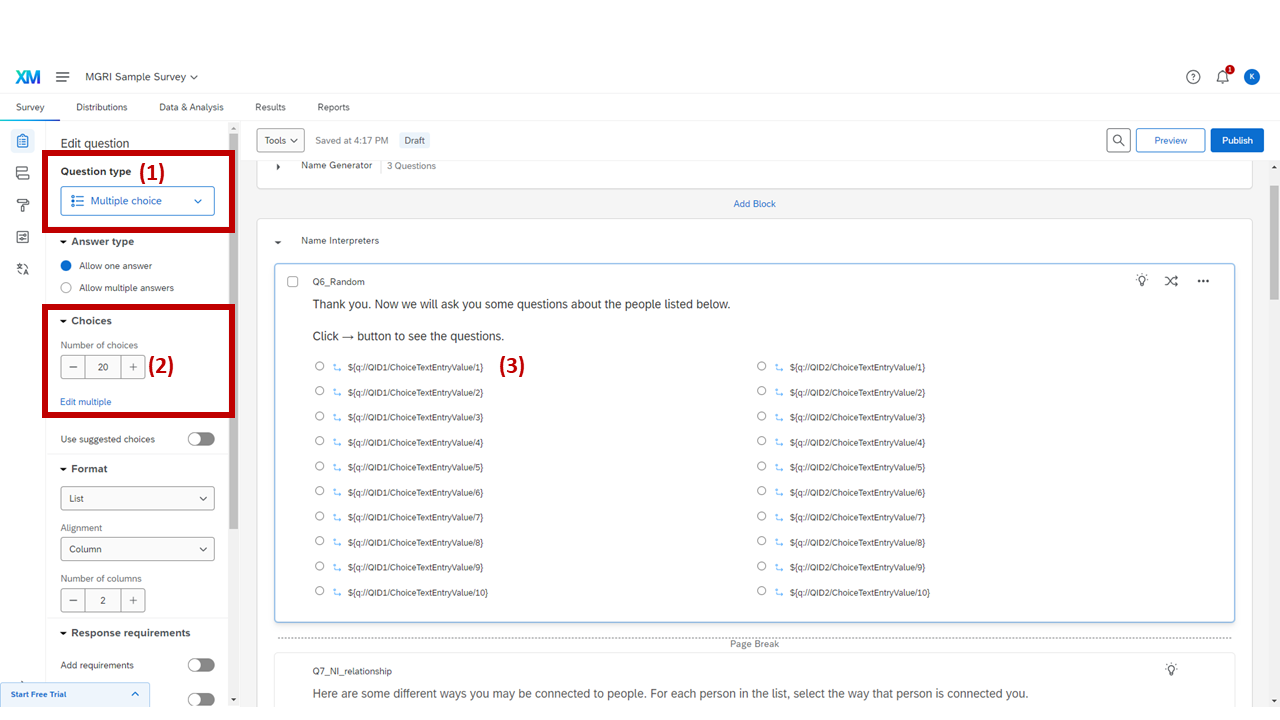
Q6_Random — multiple choice question for displaying the random sample list
Create a question in the "Name Interpreters" block and set the question type as "Multiple Choice."
(This is not a question for collecting data — this is only for showing the randomly sampled names to the respondents.)
Set the number of choices to 20.
This is 20 here because the total number of available fields in the IM and AC generators was 20. You can adjust this as you increase or decrease the number of available fields in the name generators.
Insert choice texts so that each choice matches with each field available in the name generators. Then, set up the choice display logic so the question shows only the field that has names in it.
(See below or review Step 3-(5) for directions.)
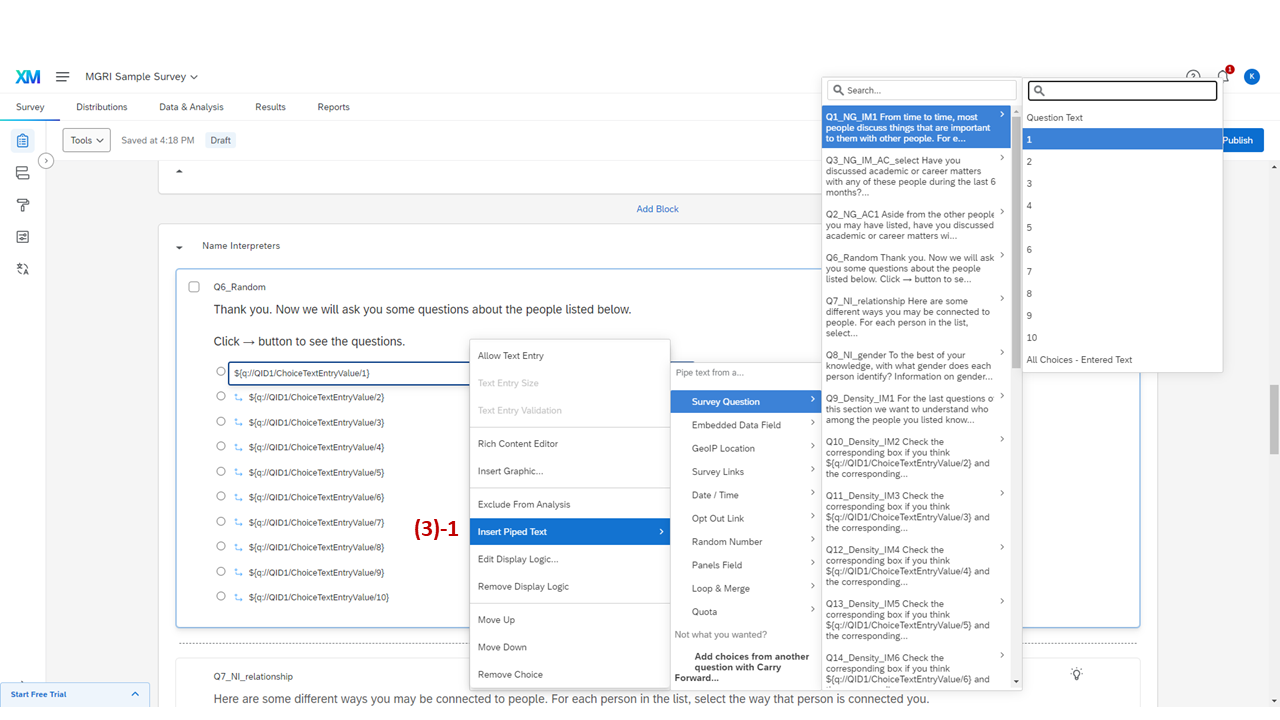
Inserting piped text from the IM generator into Q6_Random choices
Click "Insert Piped Text" > "Survey Question" > the IM generator question (Q1_NG_IM1) > and each form field of the generator.
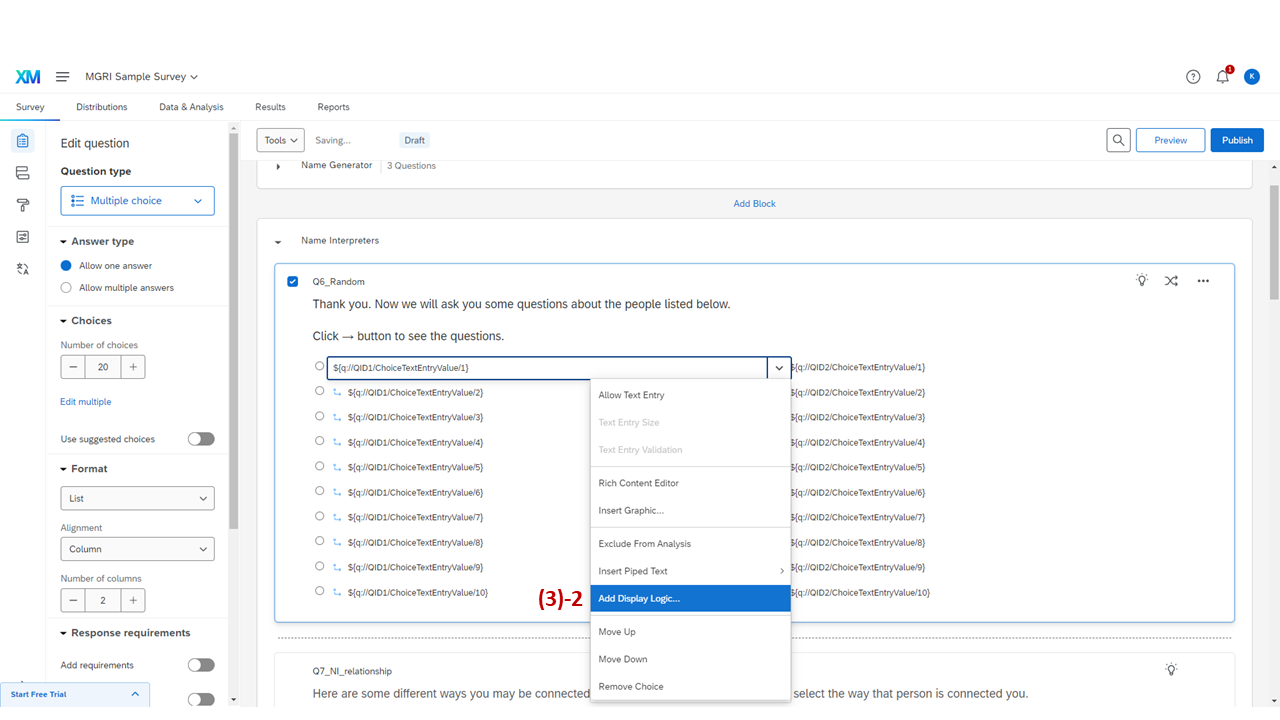
Opening "Add Display Logic" for each choice
Click "Add Display Logic…"
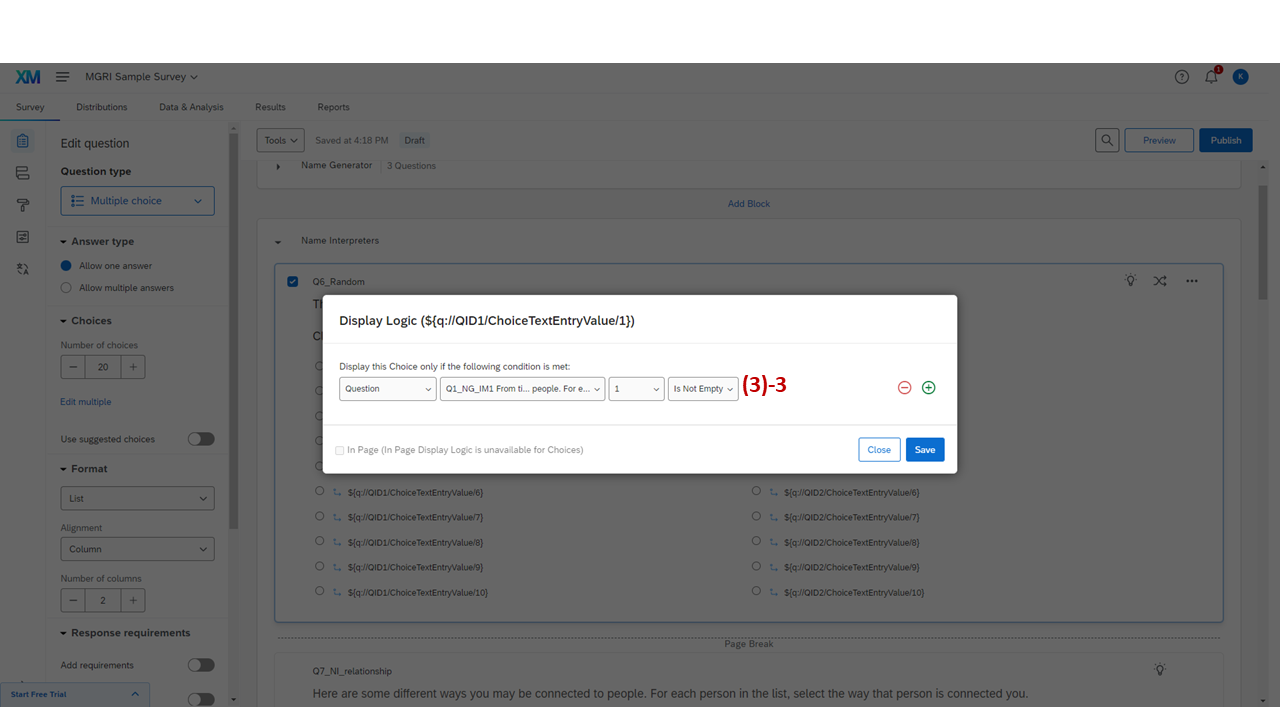
Choice display logic for Q6_Random referencing both name generators
Set the choice display logic. Each choice should embed either of the following formats:
| Type | Name | Field Name | Condition Type |
|---|---|---|---|
| Question | Q1_NG_IM1 (QID1) |
1, 2, 3, … K | Is Not Empty |
| Question | Q2_NG_AC1 (QID2) |
1, 2, 3, … K | Is Not Empty |
"Name" and number K should match the field location identified in the piped text of each choice option (${q://QID1/ChoiceTextEntryValue/K}). Set up choice display logic for all choices in the question.
QID matches the number that appears as a question name when you make a new question (e.g., "Q6" → QID6). If you deleted the question name and don't remember the number, you can export the survey data as a CSV file, and the third row holds the QID information.
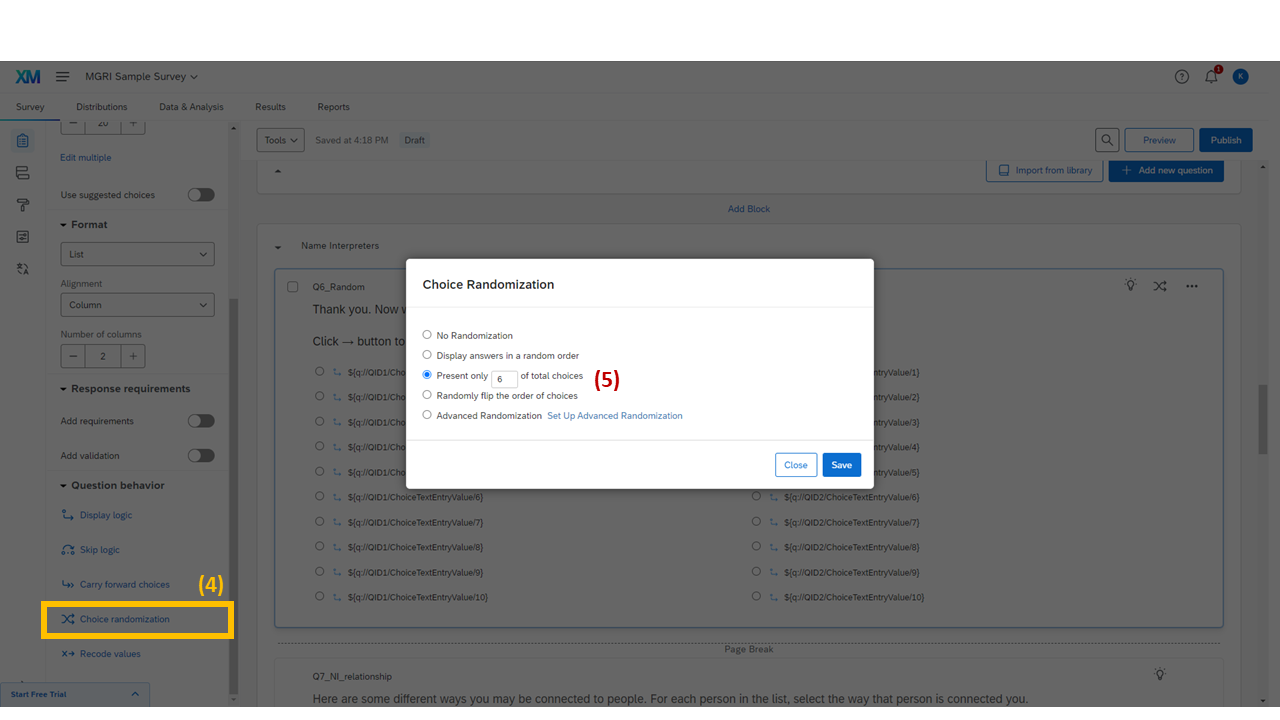
Enabling choice randomization to present only 6 of the total choices
Click "Choice randomization" on the left menu.
Click "Present only __ of total choices." Set the number of names that need to be sampled for the interpreters.
See Peng, Roth, and Perry (2023) for a discussion on how to decide the number of randomly selected names. In this sample survey, I set the number as 6.